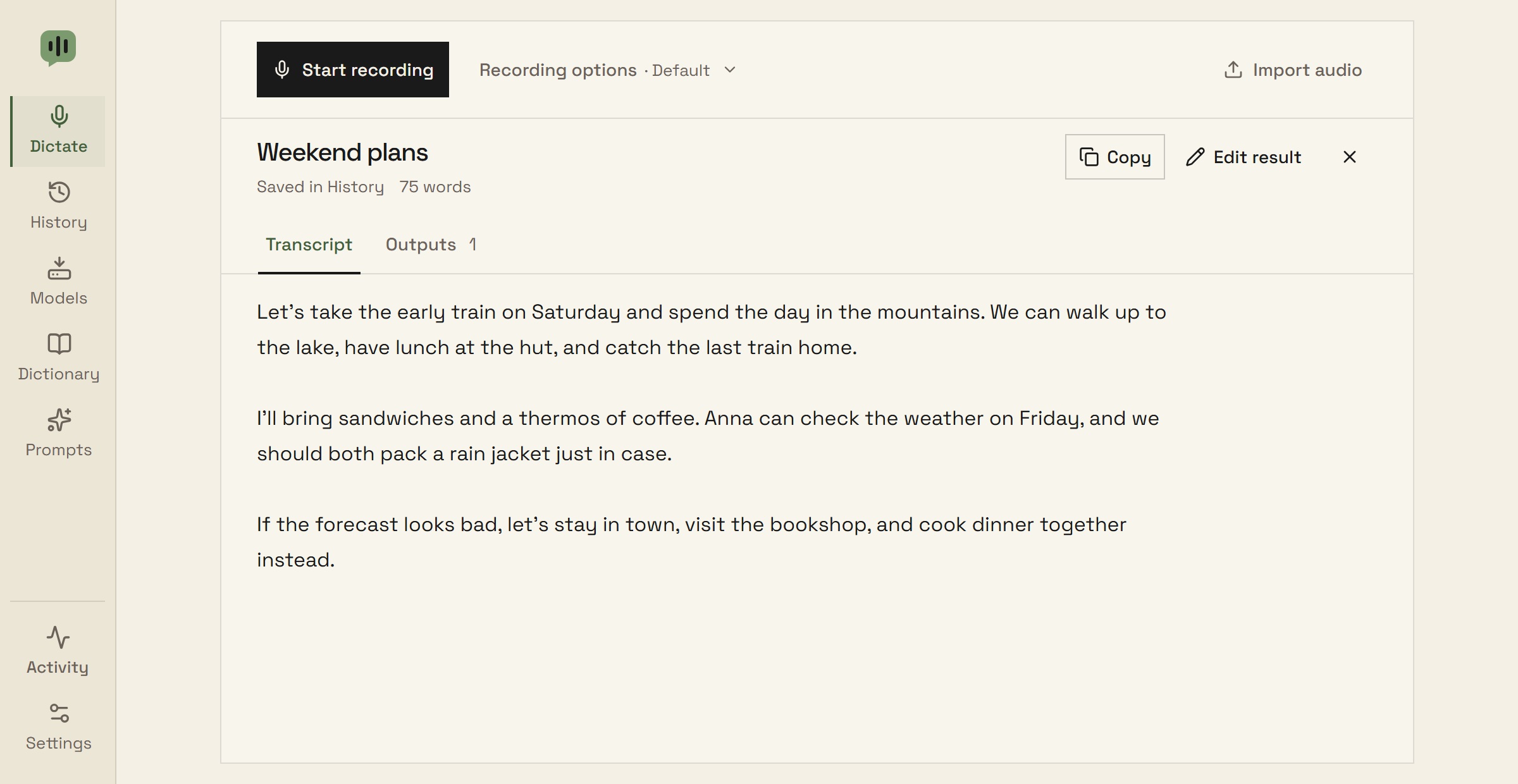
Record with a shortcut, use app-specific dictation profiles, or queue audio files. Review and edit your latest result on Home. Speech recognition runs locally.
yap.
Recording
Hold Ctrl + Alt + Space to record, then release to transcribe. Toggle mode lets you press once to start and again to stop.
Choose your microphone and record a custom shortcut in Settings.
Use Start recording or the tray menu to record without pasting.
Live recordings are limited to 10 minutes.
Dictation profiles
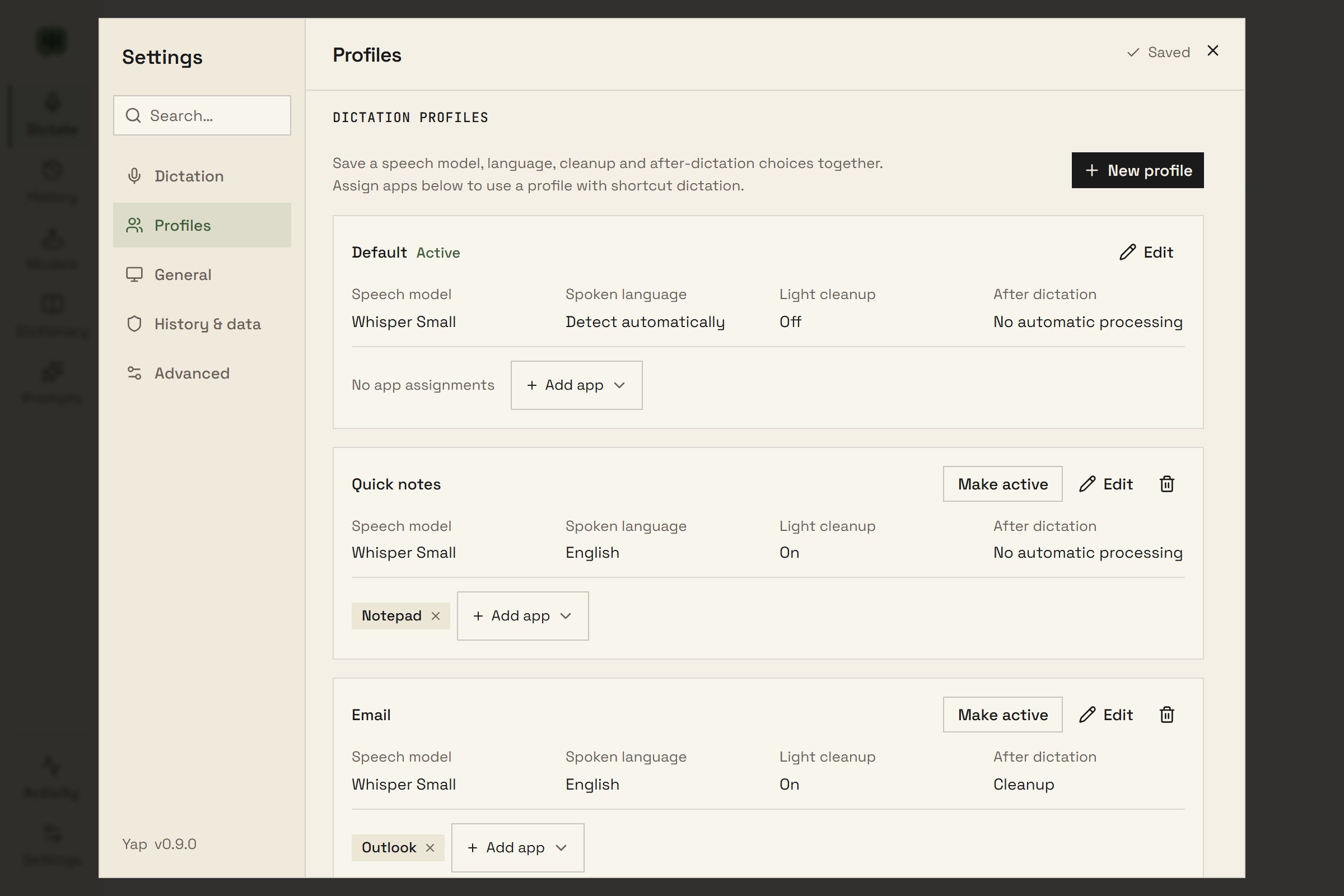
Save a speech model, spoken language, light cleanup, and optional After dictation prompt or chain as a named profile. Open Recording options on Dictate to choose a profile for new recordings and audio imports.
Create and edit profiles in Settings → Profiles. Keep Default plus up to 20 additional profiles. Valid changes save automatically.
Choose Make active in Settings, or switch in Recording options. Your microphone, shortcut, clipboard, history, and startup preferences stay in place.
Modified markers identify choices that differ from the selected profile. Restore saved choices, update the profile, or save your choices as a new one.
Automatic prompts and chains use your shared local text model.
Automatic profiles
Assign an open app to a profile in Settings → Profiles. Starting a shortcut dictation uses the focused app’s assigned choices for that recording.
Apps without a rule, imports, and recordings started in Yap or the tray use your manually selected settings.
Assignments cover an entire app, including every browser tab. App identification requires Windows or a native macOS build.
Set a Cycle profiles shortcut in Settings → Dictation. Cycling in an assigned app overrides its rule for your next shortcut dictation there.
Clipboard & background controls
Shortcut dictations request paste into the original app while it still has focus. A persistent Transcript ready — action needed warning directs you to the latest Home result when copying, pasting, or automatic processing fails.
Turn off automatic paste, or disable copying and retrieve the result from Home or History.
Close the window to keep Yap in the tray. Launch at login and start in tray are optional.
A movable recording indicator has Stop and Cancel controls and remembers its position. It hides while Yap’s main window has focus.
Latest result
Dictate brings recording controls, your latest transcript, and saved outputs into one document workspace. Copy the result, edit it, open its History entry, or dismiss it.
Review edits before applying them. Saved edits update History while keeping the original transcription and generated outputs.
Save a temporary result to History explicitly. Failed history saves and clipboard or processing failures leave recognized text available for recovery.
Switch between Transcript and Outputs to inspect or copy completed results. Temporary chain steps can be saved with the transcript.
Queued audio imports
Select multiple files from Dictate or History, or drag a batch into Yap. Files run one at a time, including while Yap is in the tray, using your saved settings when each file starts.
Track progress, reorder waiting files, cancel an active import, retry failures, and clear finished rows. Minimize the queue and reopen it when needed.
Add files while dictating or importing. Queued files wait for the current operation; invalid files do not stop the rest of the batch.
WAV, MP3, M4A, AAC, FLAC, OGG, Opus, AIFF, and WMA. Each file can be 0.3 seconds to 25 minutes long, up to 256 MiB.
WAV works directly. Other formats need FFmpeg, available as an optional Windows x64 download in Yap.
Imports leave source files and the clipboard unchanged. Copy finished results from the queue, even with Save to history off. The queue is kept for the current app session.
Light cleanup
Optional local rules tidy spacing, capitalization, and punctuation and remove common English and German filler words.
No text model is needed.
Your dictionary applies preferred spellings. The original transcript is kept.
Keyboard & appearance
Press Ctrl + K to open the command palette and find pages, profiles, and common actions without leaving the keyboard.
Choose light, dark, or system appearance. The compact navigation rail leaves more space for your transcript.
Switch the interface between English and German in Settings → General, independently of your spoken language.
Search Settings by name or keyword and jump to a matching control. Recording and profile-cycling shortcuts are configurable.
Setup tests your microphone and shortcut. You can run it again in Settings. Dictation diagnostics record a short test without saving it to History.