Clean up, summarize, or transform transcripts with Yap’s built-in text models. Save custom prompts and multi-step chains, keeping each completed result.
yap.
Text models & prompts
Choose a downloaded Gemma model with Yap’s built-in runtime. No separate model app is required. You can also use an external localhost model server if you already have one.
Download a text model in Models, choose Use model, and set context length in Prompts → Text model.
Choose Cleanup, Summary, or your own prompts from the saved library. Narrow windows use a Saved prompt picker.
Save up to 30 prompts with 8,000 characters of instructions each.
External servers such as Ollama, LM Studio, and llama-server remain optional. Only localhost endpoints are supported; the external server controls any onward connections.
Process a batch
Run a prompt or chain across selected transcripts or all search matches from History. Each transcript keeps its own saved results.
Follow the processing queue in Activity while you keep using Yap.
Source transcripts stay unchanged, and every completed chain step is saved.
Generated outputs
Save separate versions of a dictation without replacing its transcript.
Each output keeps its input, instructions, and model details.
Regenerate using the saved input and prompt with your current model.
Read Markdown and copy the source. Outputs remain available with processing disabled.
Previews & refinement
Process an editor draft, review the preview, and choose whether to replace and save it. The original speech transcript is kept.
Refine prompt suggests clearer instructions using your selected model.
Review suggestions before applying and saving them.
Prompt chains
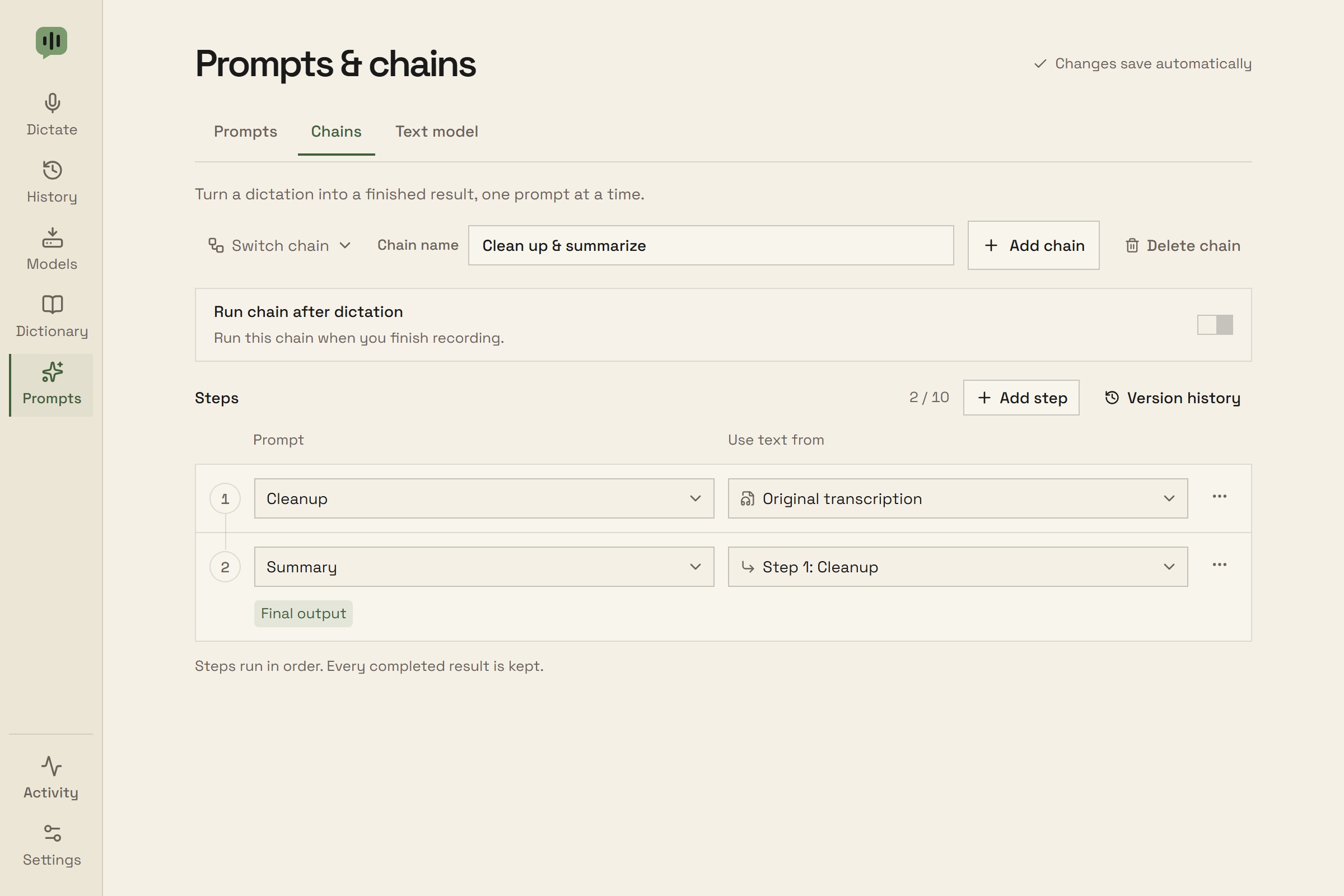
Build a workflow such as Cleanup → Summary. Each step can use the original transcription, the saved transcript, or the result of a particular earlier step.
Save up to 30 chains with 1–10 steps each. New steps use the previous result by default.
Reorder steps while preserving their input relationships, or change a step’s prompt and source text.
Run a saved chain from a dictation’s Outputs tab. Every completed step keeps its exact input, instructions, model, and place in the chain.
Failed or cancelled steps stop the chain while keeping completed results. Editing a chain does not change past outputs.
After dictation
Turn on Run after dictation for a prompt, or Run chain after dictation for a chain. The choice saves automatically. Only one prompt or chain runs automatically at a time.
The Automatic badge marks your selection. Dictation profiles can also save a prompt or chain choice.
Automatic chains copy or paste only the final result after every step succeeds.
If processing fails or is cancelled, retrieve the speech transcript and any completed steps from History or the latest Home result. Nothing is copied or pasted.
Incomplete model replies are not saved. Yap can retry with a larger output budget.
Automatic saving
Prompts, chains, text-model settings, Dictionary, and transcript edits save after a short pause. Settings toggles save immediately, and typed settings save when you leave the field or press Enter.
Valid changes also save when you leave the page. Invalid drafts pause saving and explain what needs fixing.
Failed saves keep your draft and offer Retry or Discard changes. Resolve save errors before quitting or reloading.
Use Version history to preview and restore earlier prompts, chains, transcripts, or dictionary.
Performance statistics
Enable optional Performance statistics in Settings → Advanced. Open stats from the latest result, a saved dictation, or a generated output.
Inspect transcription time, engine, model, audio length, and transcription speed.
For generated outputs, inspect request time, retries, and token counts or generation speed when the local server provides them.
Stats stay local with your results. Older results and servers that omit metrics show unavailable values.