
Local dictation for Windows
Less typing,
more yapping.
Hold a shortcut and speak into the app you're using. Chat with your transcripts and run text models right inside Yap.
Download for WindowsFree & open source · Windows 10/11 x64
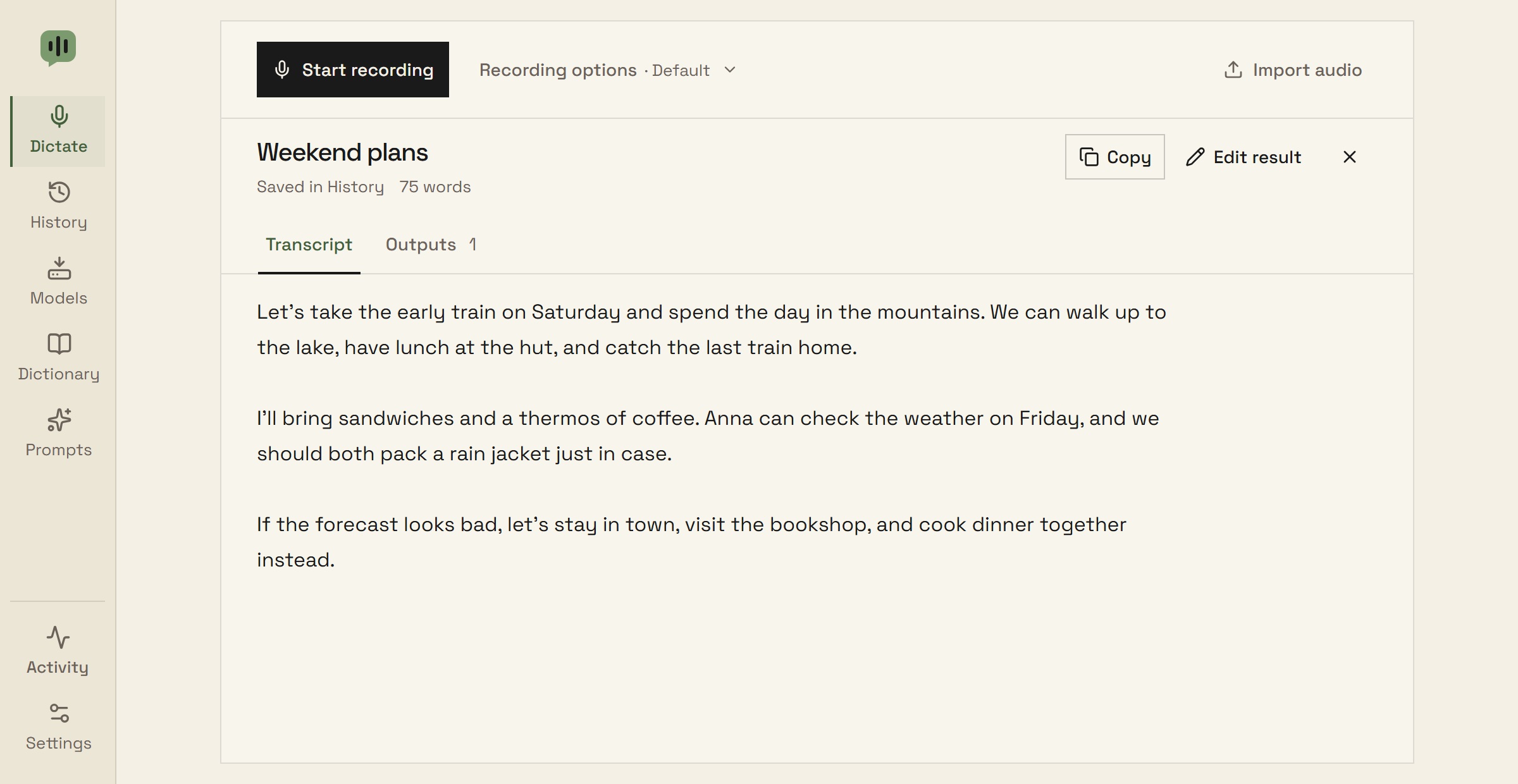
From thought to text
Hold. Speak. Let go.
From a thought to a text field.
- CtrlAltSpace
Hold the shortcut
Click into a text field, then hold Ctrl + Alt + Space.
Have a yap
Say what you want to write. Yap records while you hold the keys.
Let go
Release the keys. Yap transcribes and pastes into your text field.
Your shortcut, your choice. Toggle recording is available too.
Beyond dictation
More from your words.
Ask questions, refine a draft, or build a workflow. The models run on your computer.
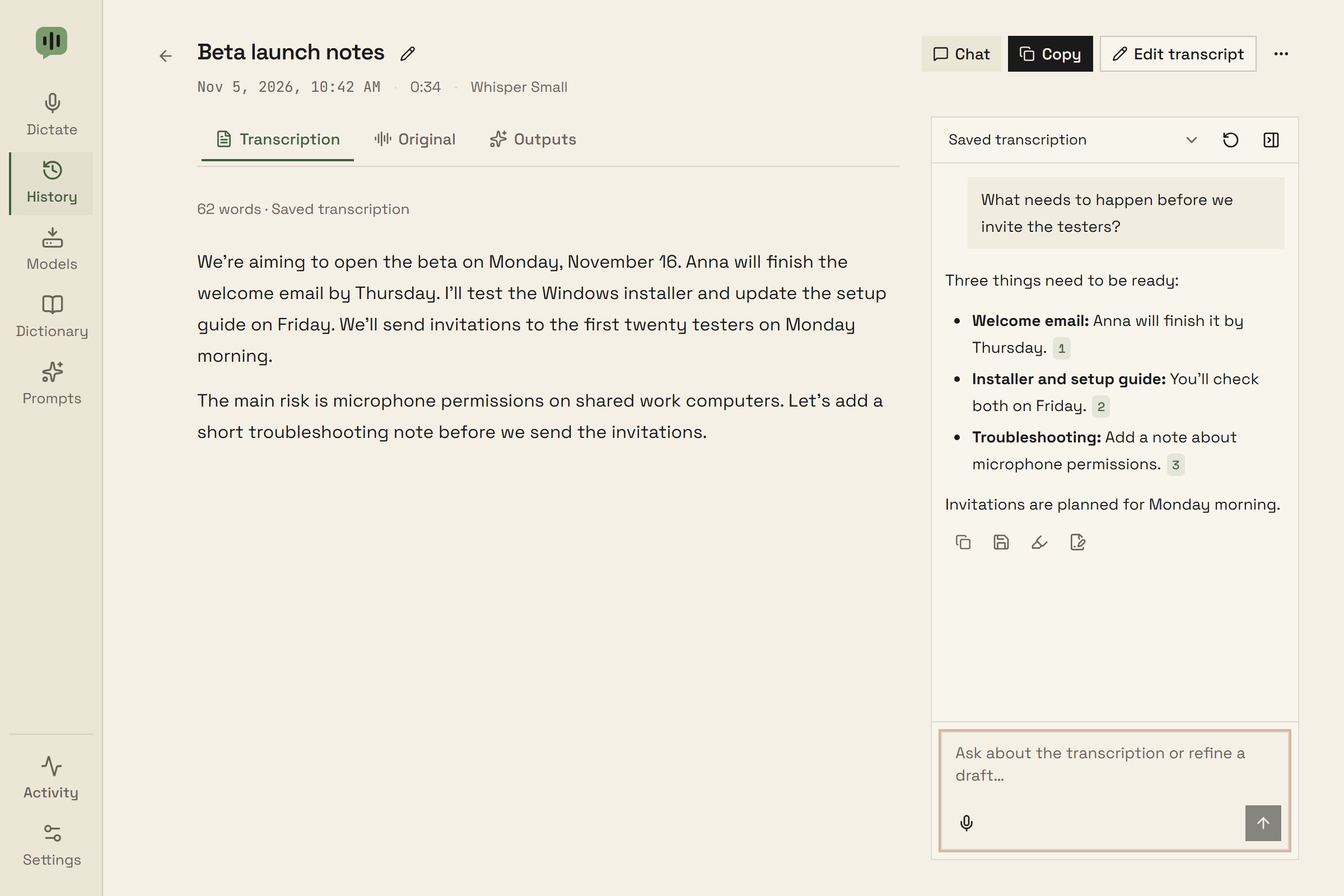
Ask your transcript. Keep the context.
Ask a question, pull out action items, or work through a rewrite beside your transcript. Follow a source reference back to the passage it came from.
- Type a question or dictate it
- Review a rewrite before applying it
- Conversations stay on your computer
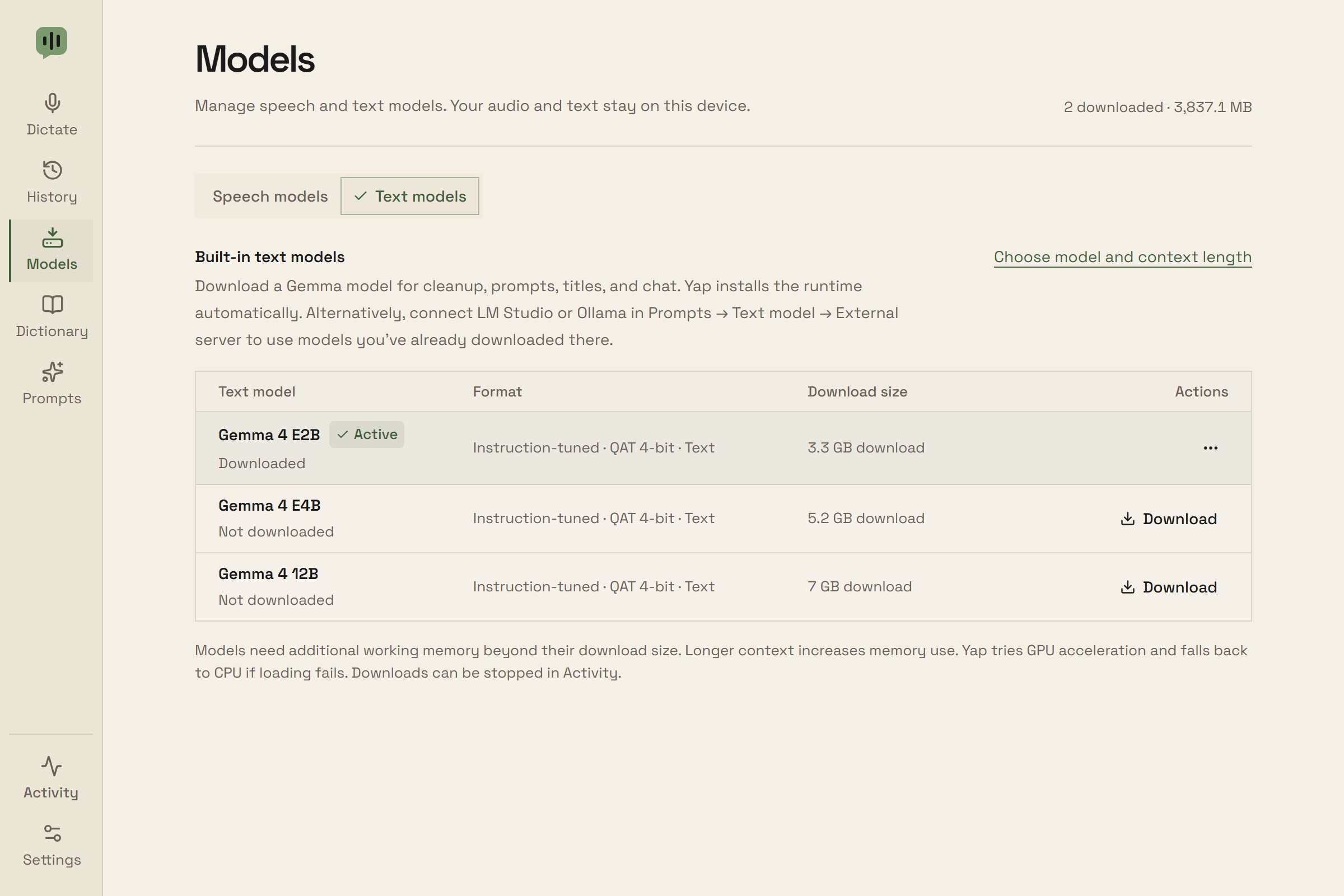
Download a model. Stay in Yap.
Download and run Gemma inside Yap for chat, cleanup, and summaries. The built-in runtime means you don’t need LM Studio or Ollama installed.
- Gemma 4 E2B, E4B, and 12B
- Runtime installed automatically
- Works offline after the first download
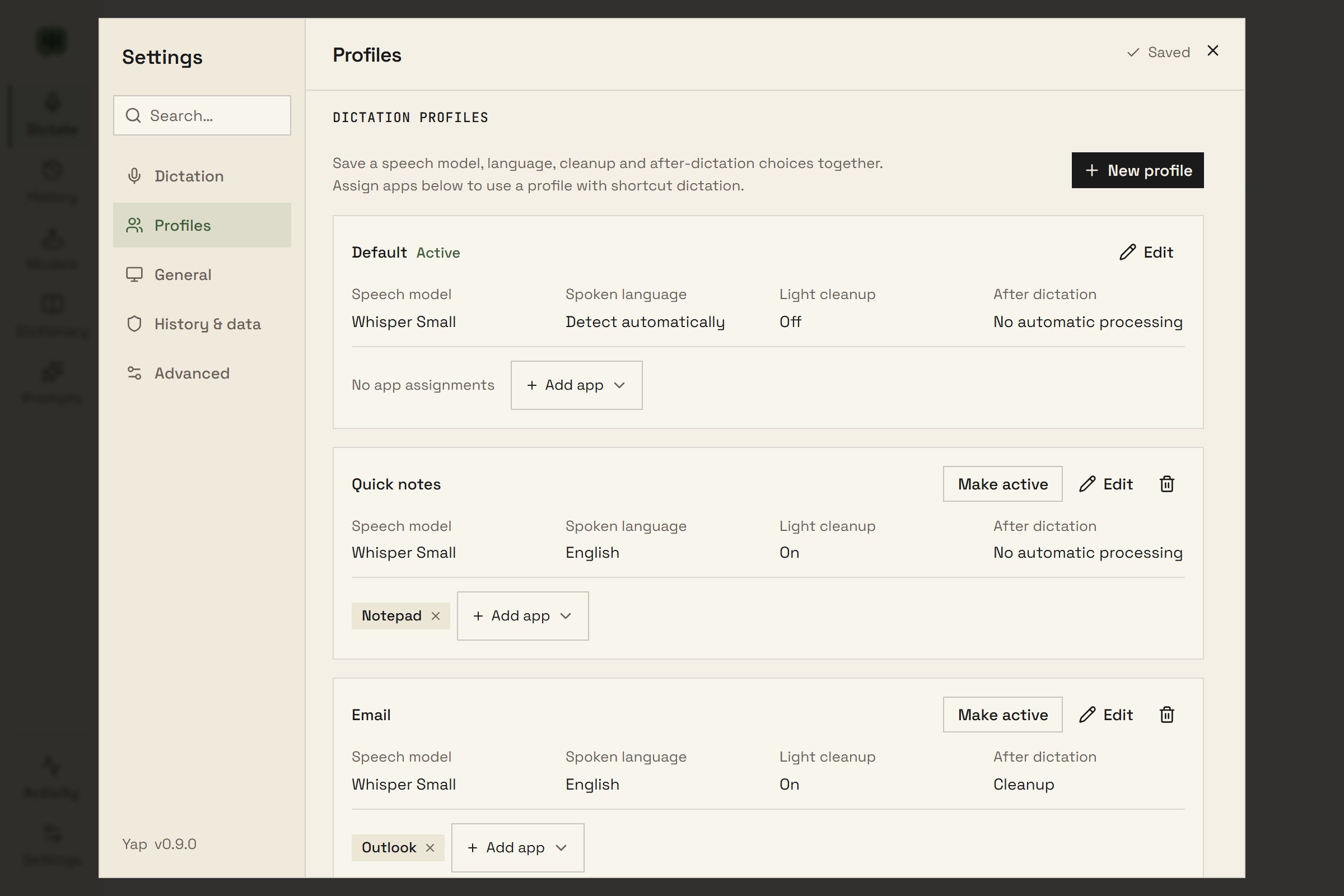
The right settings, for each app.
A quick note and a long email need different things. Save your choices in a profile, and let Yap switch when you change apps.
- Your model, language, and cleanup together
- Automatic app assignments
- Switch profiles with a shortcut
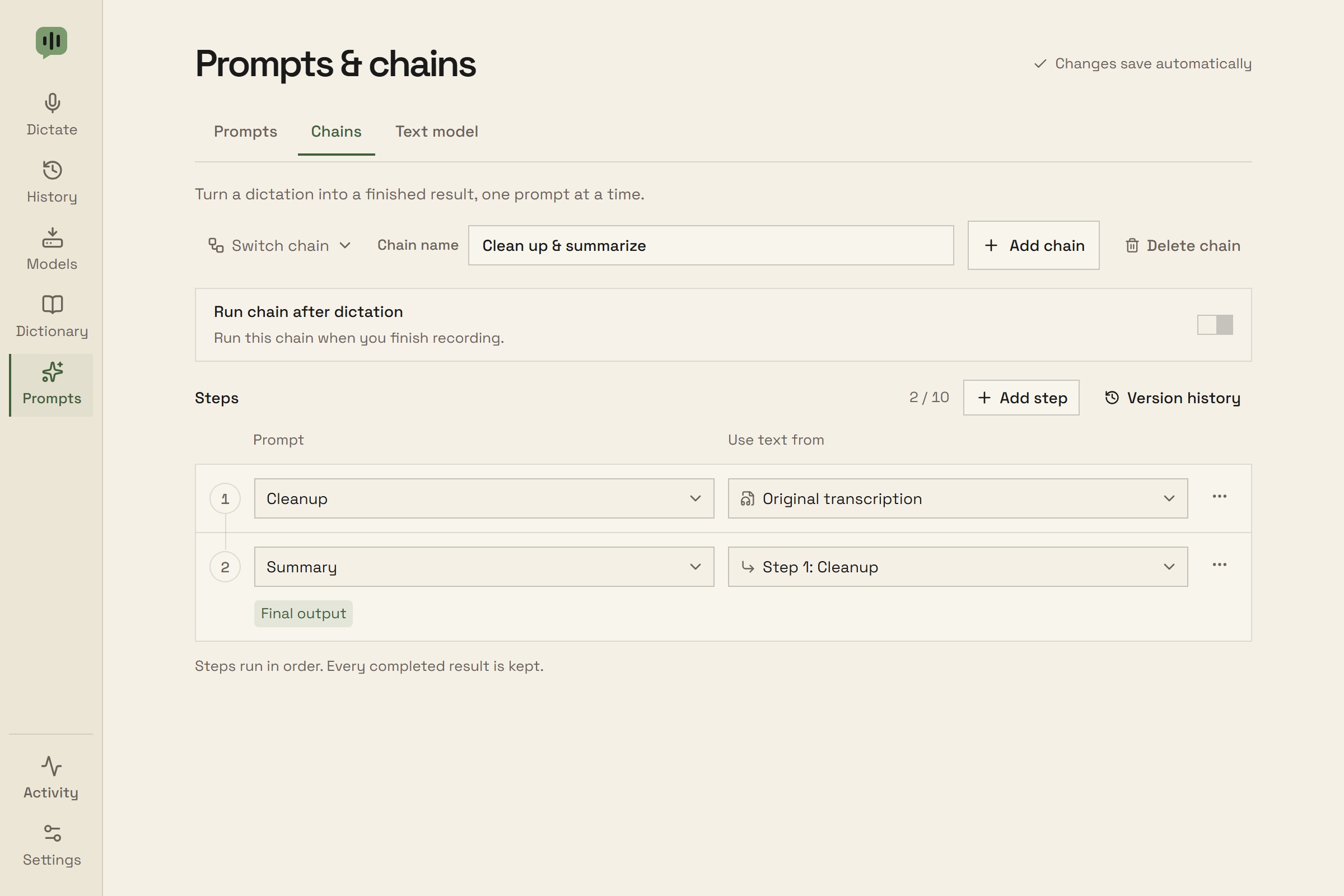
Clean it up. Then sum it up.
Use a built-in text model to clean up a transcript, make a summary, or run your own prompts in a sequence.
- Run a prompt or chain after dictation
- Process a batch from History
- Keep the transcript and each output
The useful details
Also built in.
A few useful details for the way you work.
Audio imports
Drop in audio files and transcribe them in order. Up to 25 minutes per file.
Background recording
Use the tray and floating controls to record while working in another app.
Light cleanup
Tidy punctuation, spacing, and filler words with local rules. No text model needed.
Backups
Keep history, chat conversations, prompts, and dictionary terms together. Include recordings if you want.
Batch processing
Generate titles or run a prompt or chain across selected transcripts and search results.
Command palette
Press Ctrl + K to switch profiles, open pages, and find common actions.
Good to know
A few practical
questions.
I built Yap as an open-source alternative to tools like Superwhisper, focused on local use.
Take a look at the sourceWhat do I need to get started?
Windows 10/11 x64, WebView2, a microphone, and internet for the first model download. Setup helps you choose a model and test your microphone and shortcut.
Can I use Yap offline?
Yes. Speech recognition and built-in text models work offline after their initial downloads. Chat, cleanup, summaries, and prompts can all run inside Yap. Downloads and update checks need internet.
Do I need LM Studio or Ollama?
No. On Windows x64, Yap can download Gemma text models and install its own runtime automatically. You can still connect an external localhost model server if you already use one.
What stays on my computer?
Speech recognition, built-in text models, transcripts, chat conversations, and recordings stay on your computer. Yap has no analytics or cloud transcription. If you choose an external model server, it controls any onward connections. History and backups are unencrypted.
What about macOS and Linux?
Windows is the main supported platform. macOS code is not yet tested on a Mac, and Linux support is incomplete.
Ready when you are
Say your next
sentence.
Free, open-source dictation. Ready when you are.
Windows 10/11 x64
Internet for initial setup